Dashboard
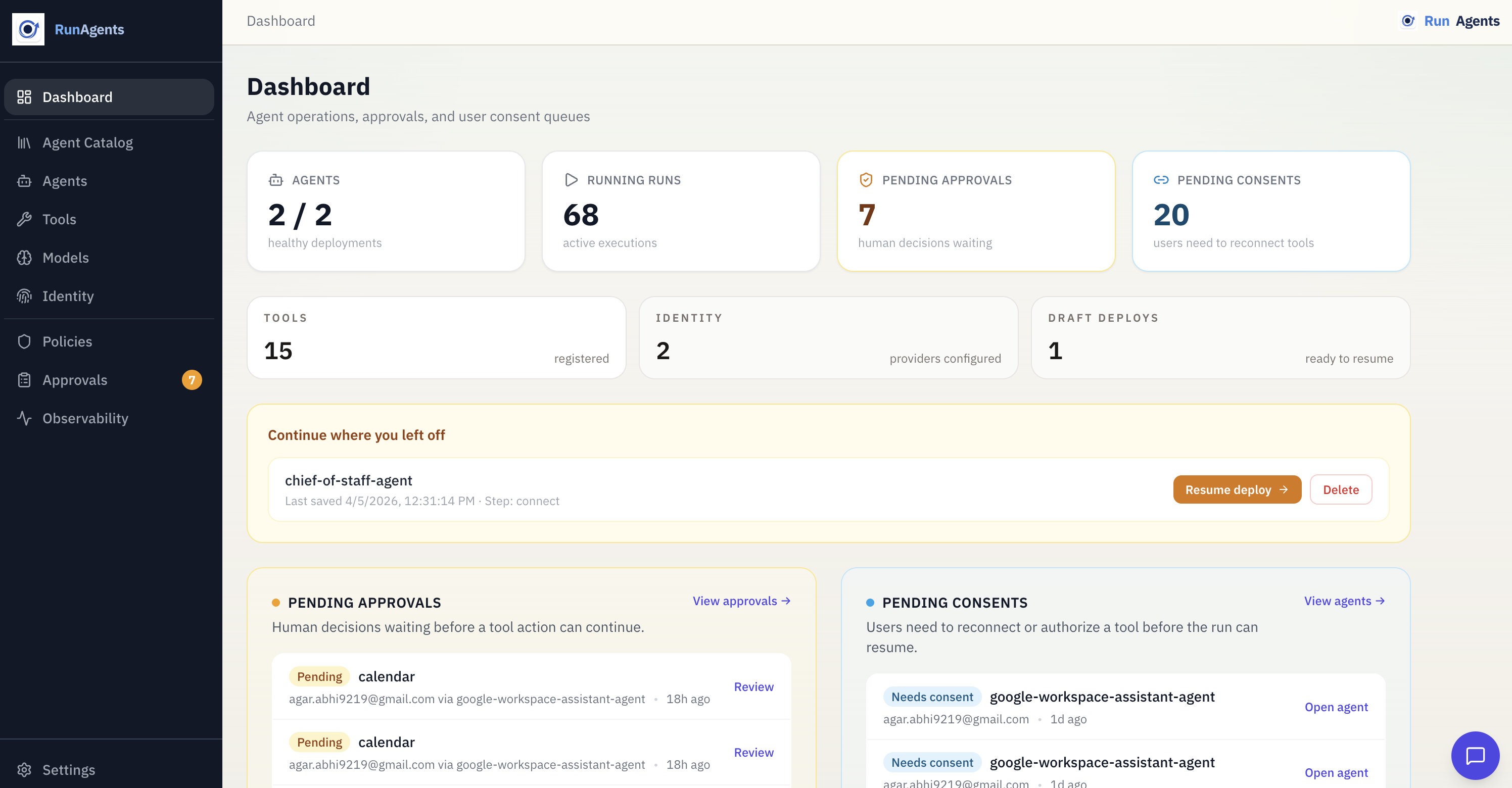
The Dashboard is the home screen of the RunAgents Console. It gives operators a quick view of workspace health, current activity, and the work that still needs human action.
First visit: welcome hero
When your workspace has no resources yet, the Dashboard shows a welcome hero with two paths:
- Deploy Hello World Agent: seeds a starter kit and walks you through a sample deployment
- I have my own code: takes you directly to the deploy wizard
Once the workspace has resources, the welcome hero is replaced by the standard dashboard.
Summary cards
The top of the Dashboard focuses on the operational questions most teams care about first.
Typical cards include:
| Card | What it shows | Links to |
|---|---|---|
| Agents | Healthy agents / total agents | Agents page |
| Running Runs | Currently executing runs | Agent and run views |
| Pending Approvals | Approval requests awaiting review | Approvals page |
| Pending Consents | Runs waiting for end-user OAuth completion | Agent and run views |
Depending on workspace state, the dashboard may also surface setup progress and resource counts for tools, identity providers, or model providers.
Getting Started checklist
When the workspace is partially configured, the Dashboard shows a lightweight setup checklist:
- register a tool
- deploy an agent
- set up an identity provider, if needed
The checklist disappears once the core setup is complete.
Pending approvals
If there are approval requests awaiting review, the Dashboard shows a Pending Approvals section. Each row highlights:
- the requesting user or subject
- the target tool
- the requesting agent
- a review link into the approvals workflow
Pending consents
If there are runs waiting on end-user OAuth, the Dashboard shows a Pending Consents section. Each row highlights:
- the paused run
- the agent involved
- the user identity
- a review link into the run detail
This makes it easier to distinguish operator work from end-user action.
Agent-centric operations view
The dashboard is designed to route operators into the right working surface quickly:
- use Agents when you want to understand deployment health and current runs for a specific agent
- use Approvals when an operator must review a governed action
- use Runs and run detail views when you need event-level execution history
Sidebar navigation
The Console sidebar groups the workspace into a few top-level areas:
| Section | Pages |
|---|---|
| Overview | Dashboard |
| Platform | Agents, Tools, Models, Identity |
| Governance | Approvals |
Badges should reflect the type of action needed. Approval work and consent work are separate operational concerns.
What's next
| Goal | Where to go |
|---|---|
| Deploy your first agent | Deploying Agents |
| Register an external API | Registering Tools |
| Configure an LLM provider | Model Providers |
| Set up user authentication | Identity Providers |
| Review governed actions | Approvals |