Approvals
RunAgents approvals are policy-driven. A request is created when a bound policy rule evaluates to permission: approval_required for a tool call.
Navigate to Approvals in the sidebar to review, approve, or reject requests.
When a request is created
A just-in-time approval request is created when all of the following are true:
- the tool call matches the tool and operation
- the agent has a bound policy whose matching rule resolves to
approval_required - the call is blocked pending approval
A 403 is returned with code: APPROVAL_REQUIRED, and if the call is part of a run, the run moves to PAUSED_APPROVAL.
Approval flow
flowchart TD
    call["Agent calls tool"]
    decision{"Policy decision"}
    allow["Allow call to proceed"]
    req["Create approval request<br/>Status: PENDING"]
    block["Return 403 APPROVAL_REQUIRED"]
    pause["Pause run (if run-backed)<br/>Status: PAUSED_APPROVAL"]
    review["Reviewer action<br/>(Console or API)"]
    approve["Approve request"]
    reject["Reject request"]
    scoped["Create scoped runtime approval"]
    resume["Resume blocked action"]
    rejected["Mark request REJECTED<br/>Run remains failed or blocked"]

    call --> decision
    decision -->|"allow"| allow
    decision -->|"approval_required"| req
    req --> block
    req --> pause
    pause --> review
    review --> approve
    review --> reject
    approve --> scoped
    scoped --> resume
    reject --> rejected
On approval, RunAgents records a scoped approval outcome and automatically resumes the blocked work.
Approval choices
Depending on the operator surface, approvals can be scoped in three useful ways:
- Once: approve one exact blocked action
- This run: approve matching actions for the current run
- Time-bound window: approve matching actions for the same user, agent, and tool for a limited period
This lets teams keep sensitive writes tightly controlled without forcing repeated approval for safe retries or short operator work windows.
Approval versus consent
Approval and consent solve different problems:
- Approval means a reviewer must allow a governed action
- Consent means an end user must grant or refresh OAuth access to a delegated-user tool
In the console, these should be treated as distinct operational states even though both may pause a run.
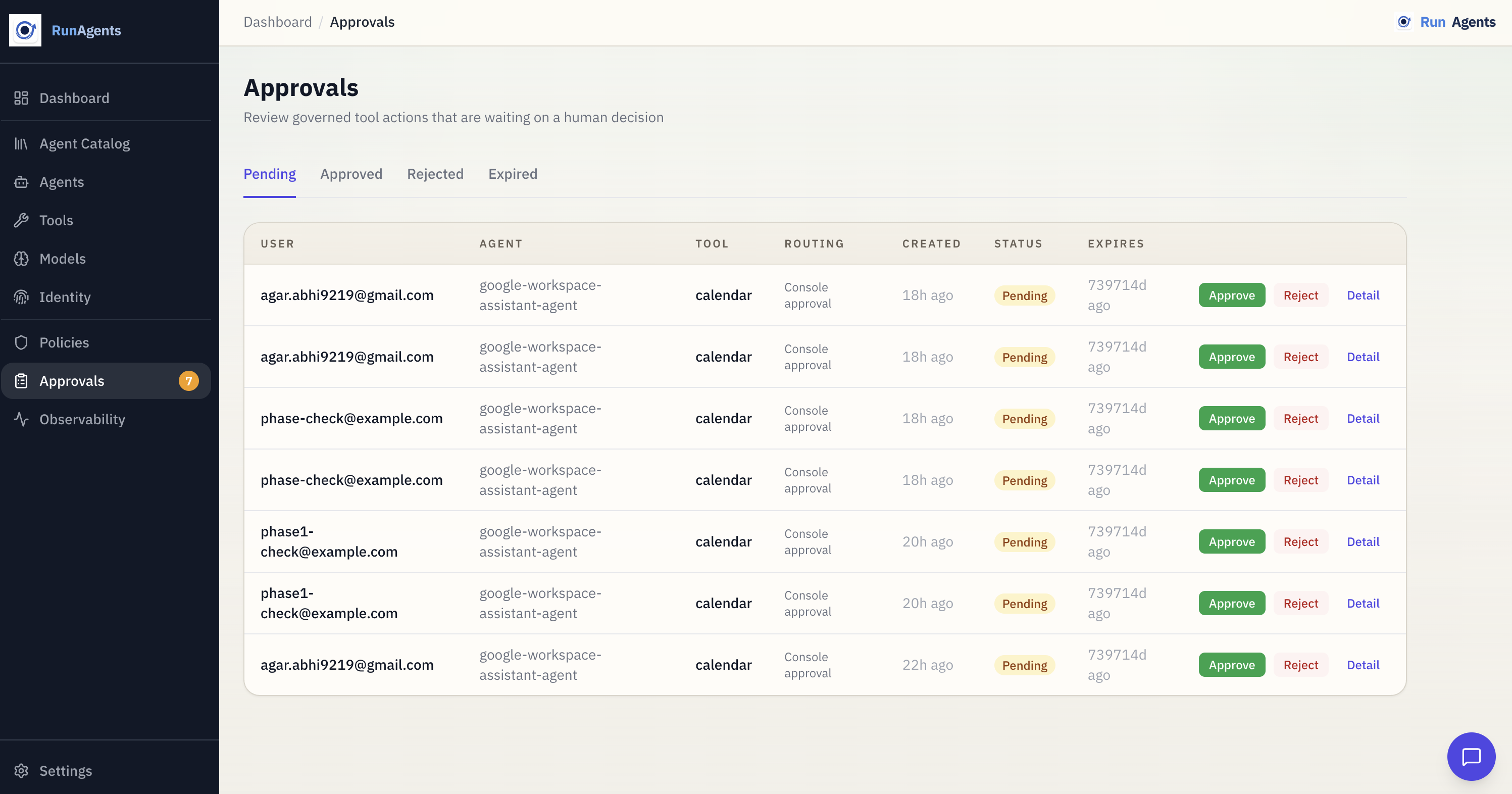
What you see on the Approvals page
Each request includes:
- agent
- tool
- subject (user or service identity)
- capability or operation, when available
- status (
PENDING,APPROVED,REJECTED,EXPIRED) - timestamps and approver metadata
Approving or rejecting can optionally record a reason for audit.
Request lifecycle
stateDiagram-v2
    [*] --> PENDING
    PENDING --> APPROVED: Reviewer approves
    PENDING --> REJECTED: Reviewer rejects
    APPROVED --> EXPIRED: Time-bound approval elapses
Automatic expiry
Time-bound approval windows expire automatically.
Policy configuration for approvals
Use policy rules to trigger approvals:
Use policy approval rules to define who can approve and how requests are delivered:
spec:
  approvals:
    - tags: [financial]
      approvers:
        groups: [finance-approvers]
        match: any
      defaultDuration: 4h
      delivery:
        connectors: [slack-finance]
        mode: first_success
        fallbackToUI: true
Connectors
Approval requests can be dispatched to external systems such as:
- Slack
- PagerDuty
- Microsoft Teams
- Jira
Configure connectors in Settings → Approval Connectors, then reference connector IDs in policy approval delivery.
Run integration
For run-backed calls:
- the request is created and the run becomes
PAUSED_APPROVAL - the operator approves or rejects the request
- the blocked action is updated
- the resume worker replays the blocked action automatically
- the run continues without the end user manually retrying
This preserves auditability for who approved what, when, and for which run or action.
Next steps
| Goal | Where to go |
|---|---|
| Understand policy semantics | Policy Model |
| Register tools safely | Registering Tools |
| Review run-level behavior | Run Lifecycle |
| Configure approver identity | Identity Providers |